Category Archives: Programming Method

Graphical programming and robotics-the tools get better and easier

MIT App Inventor is a “graphical programming language” in that we assemble programs by clicking and dragging symbols on screen, interactively, rather than writing our programs as text.

This weekend, FIRST Robotics kicks off its 2016 season. Students will design, construct, test and deploy a complex robotic system to meet the 2016 competition challenge (to be unveiled on Saturday).

The robot control system may be programmed in C++, Java, National Instrument’s LabView, RobotBuilder and/or GRIP.

Continue reading Graphical programming and robotics-the tools get better and easier

Scanning bar codes and QR Codes with App Inventor Apps

Overview

App Inventor supports scanning of product identification “bar codes” and QR codes. Bar codes are typically found on consumer product packaging. QR codes are used for web addresses (so you can scan the QR code and go directly to the web address), part and product inventory tracking, and to deliver short messages.

In this tutorial, we create a simple App Inventor app to scan bar and QR codes.

Update: José Luis Núñez provides his own tutorial (in Spanish) for a bar code scanning app to check seating in a theater (written in App Inventor). Watch it on Youtube here:  Curso de App Inventor 2 (José Luis Núñez)

User Interface

Our App Inventor app has a simple user interface – a single button to scan either a bar or QR code. When pressed, the app activates the camera to scan the code and then returns a result value.

If the code is a numeric bar code value, the app displays a web page of information about the item corresponding to the bar code. If the returned code contains a web address, then that web address is displayed on screen. Here is an example from scanning the UPC code on a package of tea:

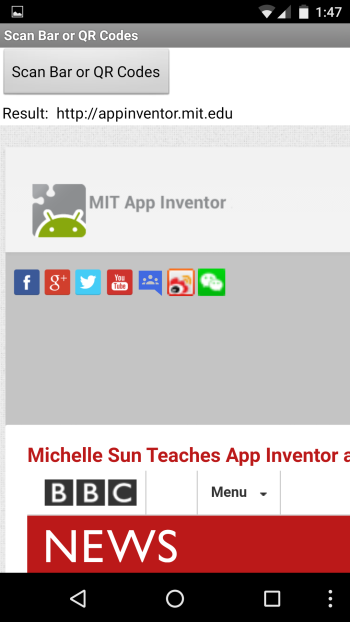
Screenshot_20151130-134823In the next example, a QR code containing http://appinventor.mit.edu is scanned:

static_qr_code_without_logoAnd here is the result:

Screenshot_20151130-134746Designer View

Drag a WebViewer component from the Palette’s User Interface section, and drag a BarCodeScanner component from the Sensor’s section. The WebViewer is the “earth” icon in this screen, and the BarCodeScanner is an invisible component, below the canvas area.

BarCodeDesignerTwo labels are used – one to display the text “Result:” and the other to display the returned code.

BarCodeComponentsBlocks Code

To activate the BarCodeScanner, we call the DoScan method:

BarCodeBlocks1The above activates the camera and displays a view on screen (in Landscape mode). Once a bar code or QR code is successfully scanned, the camera is automatically turned off and an AfterScan event is generated.

The AfterScan event has one parameter named result; this contains the converted scan code – a numeric value for a bar code or an http:// URL for a web address (anything else is displayed in the lblBarCodeResult label, on screen).

BarCodeBlocks2Creating QR Codes

To create your own QR Code images use any of the QR code generators available online – just search for “Create QR Code free” – I used http://www.qrstuff.com/

Download Source

Right Click (or Ctrl-Click on Mac OS X) and choose “Save as” (or similar wording): BarCode_Scanner.aia

E-Books and Printed Books

If you find these tutorials helpful (I hope you do!) please take a look at my books on App Inventor. To learn more about the books and where to get them (they are inexpensive) please see my App Inventor Books page.

  • App Inventor 2 Introduction (Volume 1 e-book)
    Step-by-step guide to easy Android programming
  • App Inventor 2 Advanced Concepts (Volume 2 e-book)
    Step-by-step guide to Advanced features including TinyDB
  • App Inventor 2 Databases and Files (Volume 3 e-book)
    Step-by-step TinyDB, TinyWebDB, Fusion Tables and Files
  • App Inventor 2 Graphics, Animation and Charts (Volume 4 e-book and printed book)
    Step-by-step guide to graphics, animation and charts

Thank you for visiting! — Ed


Free-Download App Inventor Text Files Cheat Sheet

Download here: App Inventor Basic Text Files Cheat Sheet (PDF)

High res, suitable for printing. Feel free to share with others.

App Inventor sample source code: TextFile.aia

Be sure to follow the links for more information about text files and where they are stored on your device and how to transfer files to your computer.

Here is a GIF image but use the PDF for printing:

Voila_Capture 2015-11-02_10-45-33_AM

E-Books and Printed Books

If you find these tutorials helpful (I hope you do!) please take a look at my books on App Inventor. To learn more about the books and where to get them (they are inexpensive) please see my App Inventor Books page.

  • App Inventor 2 Introduction (Volume 1 e-book)
    Step-by-step guide to easy Android programming
  • App Inventor 2 Advanced Concepts (Volume 2 e-book)
    Step-by-step guide to Advanced features including TinyDB
  • App Inventor 2 Databases and Files (Volume 3 e-book)
    Step-by-step TinyDB, TinyWebDB, Fusion Tables and Files
  • App Inventor 2 Graphics, Animation and Charts (Volume 4 e-book and printed book)
    Step-by-step guide to graphics, animation and charts

Thank you for visiting! — Ed

Free-Download App Inventor Location Sensor Cheat Sheet

Download here: App Inventor Location Sensor Cheat Sheet (PDF)

High res, suitable for printing. Feel free to share with others.

App Inventor sample source code: Location_WhereAmI.aia

Here is a GIF image but use the PDF for printing – also, where it says “enter a mailing address”, that should probably be “enter a street address”!

Voila_Capture 2015-10-28_12-21-17_PM

Post comments here or on our Facebook group page. Thank you!

E-Books and Printed Books

If you find these tutorials helpful (I hope you do!) please take a look at my books on App Inventor. To learn more about the books and where to get them (they are inexpensive) please see my App Inventor Books page.

  • App Inventor 2 Introduction (Volume 1 e-book)
    Step-by-step guide to easy Android programming
  • App Inventor 2 Advanced Concepts (Volume 2 e-book)
    Step-by-step guide to Advanced features including TinyDB
  • App Inventor 2 Databases and Files (Volume 3 e-book)
    Step-by-step TinyDB, TinyWebDB, Fusion Tables and Files
  • App Inventor 2 Graphics, Animation and Charts (Volume 4 e-book and printed book)
    Step-by-step guide to graphics, animation and charts

Thank you for visiting! — Ed

All new tutorial: Using TinyDB in App Inventor

I have completely rewritten and re-done my original tutorial on using TinyDB in App Inventor.

You can see the all new rewrite at Using TinyDB in App Inventor

TinyDB is a database used to store and retrieve values to semi-permanent storage on your phone or tablet. Unlike variables, which vanish when your app closes or your phone is turned off, values stored in the TinyDB are retained and can be accessed again, much later.

The original post was a popular post here on the blog, but it was brief and left out some details. I started over from scratch and wrote an all new, complete tutorial, with screen shots and blocks code, and downloadable App Inventor source code. Hope this helps!

E-Books and Printed Books

If you find these tutorials helpful (I hope you do!) please take a look at my books on App Inventor. To learn more about the books and where to get them (they are inexpensive) please see my App Inventor Books page.

  • App Inventor 2 Introduction (Volume 1 e-book)
    Step-by-step guide to easy Android programming
  • App Inventor 2 Advanced Concepts (Volume 2 e-book)
    Step-by-step guide to Advanced features including TinyDB
    • App Inventor 2 Databases and Files (Volume 3 e-book)
      Step-by-step TinyDB, TinyWebDB, Fusion Tables and Files
      Buy from: Amazon, Google Books, Kobo Books
  • App Inventor 2 Graphics, Animation and Charts (Volume 4 e-book and printed book)
    Step-by-step guide to graphics, animation and charts

Thank you for visiting! — Ed

Free-Download App Inventor Bluetooth Communications Cheat Sheet

Download here: App Inventor Bluetooth Cheat Sheet (PDF)

Covers basic Bluetooth text communications with links to tutorials on sending numeric and binary data, and connecting to Arduino over App Inventor Bluetooth.

App Inventor sample source code available here.

High res, suitable for printing. Feel free to share with others.

Here is a GIF image of the first page but use the PDF for printing (higher resolution) and it includes both pages:

Voila_Capture 2015-10-28_08-35-41_PM

Post comments here or on our Facebook group page. Thank you!

E-Books and Printed Books

If you find these tutorials helpful (I hope you do!) please take a look at my books on App Inventor. To learn more about the books and where to get them (they are inexpensive) please see my App Inventor Books page.

  • App Inventor 2 Introduction (Volume 1 e-book)
    Step-by-step guide to easy Android programming
  • App Inventor 2 Advanced Concepts (Volume 2 e-book)
    Step-by-step guide to Advanced features including TinyDB
  • App Inventor 2 Databases and Files (Volume 3 e-book)
    Step-by-step TinyDB, TinyWebDB, Fusion Tables and Files
  • App Inventor 2 Graphics, Animation and Charts (Volume 4 e-book and printed book)
    Step-by-step guide to graphics, animation and charts

Thank you for visiting! — Ed

Implementing an “Array” in App Inventor

What is an “Array”?

An array is a variable data type that stores a collection of values referenced by an index number.

For example, suppose we wished to store the names of the 12 months of the year: January, February, March, … , November, December so we can convert a month number to a text name. Month 1 converts to “January”, Month 2 converts to “February” and Month 12 converts to “December”.

An easy way to do this conversion is to set up an array that, in concept, looks something like this:

Month[1] = “January”
Month[2] = “February”
Month[3] = “March”
Month[4] = “April”
Month[5] = “May”
Month[6] = “June”
Month[7] = “July”
Month[8] = “August”
Month[9] = “September”
Month[10] = “October”
Month[11] = “November”
Month[12] = “December”

Month is the name of this variable – but unlike other variables, this one stores 12 separate values. Each value is referenced by using an index – if the index value is 2, then Month[index] refers to “February”.

If we have a date, such as (US-style) – 2/14/15, meaning February 15, 2015, we can convert the month number of 2, into the text month name by referencing Month[2].

If you have studied algebra math or beyond, you have encountered array variables such as X1, X2, X3, … Xn where the value Xi is read as “X subscript i”. This is the same concept as an array of values. If you have not studied algebra, this notation may be new to you. 

Most programming languages support an array variable type but App Inventor does not support arrays. Yet arrays are a convenient way of storing and working with some types of data. To support an array-like variable in App Inventor, we can use a list and map the array subscript to an index position in the list.  By hiding this within a couple of procedures, we can simulate the array variable type.

Sample User Interface

I created a simple app to demonstrate the use and implementation of the array. You can download this app from the MIT App Inventor Gallery here.

Continue reading Implementing an “Array” in App Inventor

How to use the “2 Button” Notifier dialog box

A reader asked, “When using the 2 button Notifier dialog, how do we know which button was pressed?

The 2 button Notifier dialog alert box displays 3 buttons(!) – the first two have values you specify, such as “Ok” and “Done”, as shown here, and the third is an optional generic “Cancel” button:

Screenshot_2015-09-11-15-07-15

The Notifier component block is a procedure call that has no return value – so how can you determine which button was selected?

The answer is that the selected button is returned to a separate event handler.

Continue reading How to use the “2 Button” Notifier dialog box

Tip: Using component colors to find components in the Blocks Editor

Finding a specific programming block with in the AI2 Blocks editor can be hard for new AI programmers.

You found a great code example online and want to recreate it by entering the blocks in to your program – but you cannot find that red block in the middle of the code sample? Where is it? !!!

You start poking around the drop down lists, scanning up and down the pop up menus, missing it the first time(!) and then going through all the blocks again until you finally locate that darned block! Frustrating!

Continue reading Tip: Using component colors to find components in the Blocks Editor

New Linux OS version designed for Android & App Inventor app development

The Appril release of Quirky Linux includes the Android SDK (Software Development Kit), Android Studio, App Inventor, Oracle JDK (Java Development Kit), and LiveCode tools, as well as all of their dependencies, together with the JWM (Joe’s Window Manager) and ROX, providing one of the lightest environments for Android app developers.

“The intention is to have out-of-the-box, just-click-and-get-going Android app development, catering for total non-programmers with App Inventor, through intermediate with LiveCode, to hard-core coders with Android Studio,” says Barry Kauler, Puppy Linux creator.

Source: Puppy Linux’s Sister Quirky 7.1 Distro Arrives with Tools for Android App Developers

It actually runs the App Inventor system on the computer – does not require access to appinventor.mit.edu.

Download here (its free, of course). I have not tried this yet but would be interested to hear reports from users!