Category Archives: Components

What if your App Inventor apps had cooler user interface controls?

How about this – a panel full of toggle switches! Tap a switch to flip the switch from On to Off!

Screenshot_20160118-164605I will soon post a tutorial on creating simpler interfaces than the above, but that will be followed by a tutorial to create the above “panel of toggle switches”.

I have ideas for many interesting interface components – I do not yet know if all of them can be built in App Inventor – but we will see!

Scanning bar codes and QR Codes with App Inventor Apps

Overview

App Inventor supports scanning of product identification “bar codes” and QR codes. Bar codes are typically found on consumer product packaging. QR codes are used for web addresses (so you can scan the QR code and go directly to the web address), part and product inventory tracking, and to deliver short messages.

In this tutorial, we create a simple App Inventor app to scan bar and QR codes.

Update: José Luis Núñez provides his own tutorial (in Spanish) for a bar code scanning app to check seating in a theater (written in App Inventor). Watch it on Youtube here:  Curso de App Inventor 2 (José Luis Núñez)

User Interface

Our App Inventor app has a simple user interface – a single button to scan either a bar or QR code. When pressed, the app activates the camera to scan the code and then returns a result value.

If the code is a numeric bar code value, the app displays a web page of information about the item corresponding to the bar code. If the returned code contains a web address, then that web address is displayed on screen. Here is an example from scanning the UPC code on a package of tea:

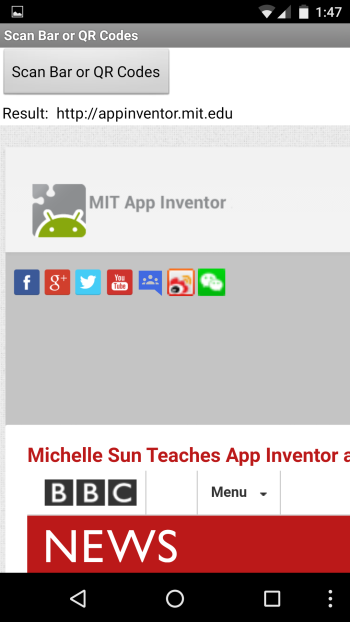
Screenshot_20151130-134823In the next example, a QR code containing http://appinventor.mit.edu is scanned:

static_qr_code_without_logoAnd here is the result:

Screenshot_20151130-134746Designer View

Drag a WebViewer component from the Palette’s User Interface section, and drag a BarCodeScanner component from the Sensor’s section. The WebViewer is the “earth” icon in this screen, and the BarCodeScanner is an invisible component, below the canvas area.

BarCodeDesignerTwo labels are used – one to display the text “Result:” and the other to display the returned code.

BarCodeComponentsBlocks Code

To activate the BarCodeScanner, we call the DoScan method:

BarCodeBlocks1The above activates the camera and displays a view on screen (in Landscape mode). Once a bar code or QR code is successfully scanned, the camera is automatically turned off and an AfterScan event is generated.

The AfterScan event has one parameter named result; this contains the converted scan code – a numeric value for a bar code or an http:// URL for a web address (anything else is displayed in the lblBarCodeResult label, on screen).

BarCodeBlocks2Creating QR Codes

To create your own QR Code images use any of the QR code generators available online – just search for “Create QR Code free” – I used http://www.qrstuff.com/

Download Source

Right Click (or Ctrl-Click on Mac OS X) and choose “Save as” (or similar wording): BarCode_Scanner.aia

E-Books and Printed Books

If you find these tutorials helpful (I hope you do!) please take a look at my books on App Inventor. To learn more about the books and where to get them (they are inexpensive) please see my App Inventor Books page.

  • App Inventor 2 Introduction (Volume 1 e-book)
    Step-by-step guide to easy Android programming
  • App Inventor 2 Advanced Concepts (Volume 2 e-book)
    Step-by-step guide to Advanced features including TinyDB
  • App Inventor 2 Databases and Files (Volume 3 e-book)
    Step-by-step TinyDB, TinyWebDB, Fusion Tables and Files
  • App Inventor 2 Graphics, Animation and Charts (Volume 4 e-book and printed book)
    Step-by-step guide to graphics, animation and charts

Thank you for visiting! — Ed


MIT App Inventor “Extensions”

Some new “extension” features are available for testing in App Inventor at MIT App Inventor Extensions. The 4 extensions include vector addition, simple image processing, simple audio processing to identify the pitch of a sound, and the addition of multi-touch gestures to the Canvas.

I have not yet had time to try these but this is a sign of things to come as 3rd parties can begin to develop extensions to the core set of App Inventor features.

Look forward to trying these out! Click on the link above to take a look.

Free-Download App Inventor Text Files Cheat Sheet

Download here: App Inventor Basic Text Files Cheat Sheet (PDF)

High res, suitable for printing. Feel free to share with others.

App Inventor sample source code: TextFile.aia

Be sure to follow the links for more information about text files and where they are stored on your device and how to transfer files to your computer.

Here is a GIF image but use the PDF for printing:

Voila_Capture 2015-11-02_10-45-33_AM

E-Books and Printed Books

If you find these tutorials helpful (I hope you do!) please take a look at my books on App Inventor. To learn more about the books and where to get them (they are inexpensive) please see my App Inventor Books page.

  • App Inventor 2 Introduction (Volume 1 e-book)
    Step-by-step guide to easy Android programming
  • App Inventor 2 Advanced Concepts (Volume 2 e-book)
    Step-by-step guide to Advanced features including TinyDB
  • App Inventor 2 Databases and Files (Volume 3 e-book)
    Step-by-step TinyDB, TinyWebDB, Fusion Tables and Files
  • App Inventor 2 Graphics, Animation and Charts (Volume 4 e-book and printed book)
    Step-by-step guide to graphics, animation and charts

Thank you for visiting! — Ed

Free-Download App Inventor Location Sensor Cheat Sheet

Download here: App Inventor Location Sensor Cheat Sheet (PDF)

High res, suitable for printing. Feel free to share with others.

App Inventor sample source code: Location_WhereAmI.aia

Here is a GIF image but use the PDF for printing – also, where it says “enter a mailing address”, that should probably be “enter a street address”!

Voila_Capture 2015-10-28_12-21-17_PM

Post comments here or on our Facebook group page. Thank you!

E-Books and Printed Books

If you find these tutorials helpful (I hope you do!) please take a look at my books on App Inventor. To learn more about the books and where to get them (they are inexpensive) please see my App Inventor Books page.

  • App Inventor 2 Introduction (Volume 1 e-book)
    Step-by-step guide to easy Android programming
  • App Inventor 2 Advanced Concepts (Volume 2 e-book)
    Step-by-step guide to Advanced features including TinyDB
  • App Inventor 2 Databases and Files (Volume 3 e-book)
    Step-by-step TinyDB, TinyWebDB, Fusion Tables and Files
  • App Inventor 2 Graphics, Animation and Charts (Volume 4 e-book and printed book)
    Step-by-step guide to graphics, animation and charts

Thank you for visiting! — Ed

Free-Download App Inventor OrientationSensor “Cheat Sheet”!

Download here: App Inventor Orientation Sensor Cheat Sheet (PDF)

High res, suitable for printing. Feel free to share with others.

Here is a GIF of the cheat sheet but use the PDF for printing (higher resolution):

Voila_Capture 2015-10-28_12-25-22_PM

Post comments here or on our Facebook group page. Thank you!

E-Books and Printed Books

If you find these tutorials helpful (I hope you do!) please take a look at my books on App Inventor. To learn more about the books and where to get them (they are inexpensive) please see my App Inventor Books page.

  • App Inventor 2 Introduction (Volume 1 e-book)
    Step-by-step guide to easy Android programming
  • App Inventor 2 Advanced Concepts (Volume 2 e-book)
    Step-by-step guide to Advanced features including TinyDB
  • App Inventor 2 Databases and Files (Volume 3 e-book)
    Step-by-step TinyDB, TinyWebDB, Fusion Tables and Files
  • App Inventor 2 Graphics, Animation and Charts (Volume 4 e-book and printed book)
    Step-by-step guide to graphics, animation and charts

Thank you for visiting! — Ed

App Inventor introduces copy and paste of code blocks!

App Inventor has introduced “copy and paste” of code blocks. Now you can copy blocks of code within a current screen, or from one screen to another screen, or even between projects. This is great news!

Look for the “backpack” icon at upper right of the blocks Viewer screen:

AI_Copy1

Select a block or blocks with the mouse pointer, and then click and drag the selected blocks into the backpack. A copy of the blocks are placed into the backpack and your original blocks also remain in the editing window.

Click on the backpack icon and it displays the code blocks currently stored in the backpack:

AI_Copy2

Click on the code block in the backpack (at right) and drag it into the Blocks Viewer. That is all you need to do to copy blocks.

Use this feature to copy blocks within your current screen, or to copy blocks from one screen to another screen, or to copy blocks from one app to another app.

You can put several blocks into the backpack, and then select only the ones you wish to copy over to another blocks Viewer.

How do you empty the backpack? It seems the only way to empty the backpack of saved items is to close the editing windows, go back to the MIT App Inventor home page (http://appinventor.mit.edu/) and select the Create apps! button to re-enter the designer and blocks editor.

Regardless, this is a GREAT NEW FEATURE! Thanks MIT App Inventor team!

How to use the “2 Button” Notifier dialog box

A reader asked, “When using the 2 button Notifier dialog, how do we know which button was pressed?

The 2 button Notifier dialog alert box displays 3 buttons(!) – the first two have values you specify, such as “Ok” and “Done”, as shown here, and the third is an optional generic “Cancel” button:

Screenshot_2015-09-11-15-07-15

The Notifier component block is a procedure call that has no return value – so how can you determine which button was selected?

The answer is that the selected button is returned to a separate event handler.

Continue reading How to use the “2 Button” Notifier dialog box

Tip: Using component colors to find components in the Blocks Editor

Finding a specific programming block with in the AI2 Blocks editor can be hard for new AI programmers.

You found a great code example online and want to recreate it by entering the blocks in to your program – but you cannot find that red block in the middle of the code sample? Where is it? !!!

You start poking around the drop down lists, scanning up and down the pop up menus, missing it the first time(!) and then going through all the blocks again until you finally locate that darned block! Frustrating!

Continue reading Tip: Using component colors to find components in the Blocks Editor

Example of the new App Inventor “Responsive Design” Feature

MIT App Inventor introduced today their new “responsive design” features so that apps can work “better” on different sized screens. Using these new features, you can create a single app that should run on both a smart phone and a tablet, yet still display proportional user interface controls. Prior to this, your nicely designed smart phone app could end up having very small buttons or text boxes when run on a tablet; now, these components will resize as needed.

The name “responsive” comes from the ability of the app to “respond” to the size of the device and to change the size of controls so they maintain a similar size on each device. The terminology “responsive web design” also refers to web sites that are designed to work with different sized mobile device screens – here is a link to a great article about responsive web site design, passed to us by reader David – thanks!

Continue reading Example of the new App Inventor “Responsive Design” Feature