All posts by coldstreams

Writing Android apps in Javascript

Another way to develop apps for Android is to write apps in the Javascript program scripting language (note – Javascript is not related to Java, in spite of the similar name). By using a special platform called Cordova, it is possible to package Javascript programs into a self contained Android .apk file that runs on the Android OS.

Even better – it is possible to package your Javascript app, using Cordova, into forms that run on iOS (iPhones and iPad) and Windows Phone too!

Continue reading Writing Android apps in Javascript

Graphical programming and robotics-the tools get better and easier

MIT App Inventor is a “graphical programming language” in that we assemble programs by clicking and dragging symbols on screen, interactively, rather than writing our programs as text.

This weekend, FIRST Robotics kicks off its 2016 season. Students will design, construct, test and deploy a complex robotic system to meet the 2016 competition challenge (to be unveiled on Saturday).

The robot control system may be programmed in C++, Java, National Instrument’s LabView, RobotBuilder and/or GRIP.

Continue reading Graphical programming and robotics-the tools get better and easier

Interest in App Inventor continues to grow

The following chart comes from Google Trends, and reflects the growing interest in App Inventor, based on searches for “MIT App Inventor” on Google.

MITAppInventorTrend

Because App Inventor has been viewed as a training tool in K-12 level schools, and some introductory college courses, searches for App Inventor information have gone down during the northern hemisphere summer months, when school is not normally in session. This accounts for the up and down movement in the trend line.

This chart shows a relative level of interest for the top countries searching for “MIT App Inventor”.

Region

New Feature! Save your blocks code as an image file! Print blocks code!

App Inventor Elsa Consulting passes this along on Facebook:

Tip: Right click for download blocks as png Image!

Source: App Inventor Elsa Consulting

In case the link does not work, here’s an example – right click on a blank space in the Blocks editor view and get this pop up menu:

SaveBlocksAsImage

Select “Download Blocks as Image” and it downloads a graphic image of all of your blocks – which you can then print out if you want – finally!!!!!!

(FYI – my posting here on this blog is sparse for a little while longer. Been remodeling our kitchen which means lots of time and living in a mess. But I have gotten a lot of work done on Volume 4 of the App Inventor guide. Hope to introduce Volume 4 in about one month – with many neat features coming!)

Scanning bar codes and QR Codes with App Inventor Apps

Overview

App Inventor supports scanning of product identification “bar codes” and QR codes. Bar codes are typically found on consumer product packaging. QR codes are used for web addresses (so you can scan the QR code and go directly to the web address), part and product inventory tracking, and to deliver short messages.

In this tutorial, we create a simple App Inventor app to scan bar and QR codes.

Update: José Luis Núñez provides his own tutorial (in Spanish) for a bar code scanning app to check seating in a theater (written in App Inventor). Watch it on Youtube here:  Curso de App Inventor 2 (José Luis Núñez)

User Interface

Our App Inventor app has a simple user interface – a single button to scan either a bar or QR code. When pressed, the app activates the camera to scan the code and then returns a result value.

If the code is a numeric bar code value, the app displays a web page of information about the item corresponding to the bar code. If the returned code contains a web address, then that web address is displayed on screen. Here is an example from scanning the UPC code on a package of tea:

Screenshot_20151130-134823In the next example, a QR code containing http://appinventor.mit.edu is scanned:

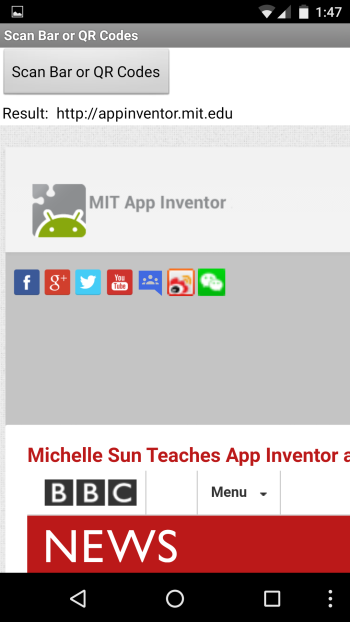
static_qr_code_without_logoAnd here is the result:

Screenshot_20151130-134746Designer View

Drag a WebViewer component from the Palette’s User Interface section, and drag a BarCodeScanner component from the Sensor’s section. The WebViewer is the “earth” icon in this screen, and the BarCodeScanner is an invisible component, below the canvas area.

BarCodeDesignerTwo labels are used – one to display the text “Result:” and the other to display the returned code.

BarCodeComponentsBlocks Code

To activate the BarCodeScanner, we call the DoScan method:

BarCodeBlocks1The above activates the camera and displays a view on screen (in Landscape mode). Once a bar code or QR code is successfully scanned, the camera is automatically turned off and an AfterScan event is generated.

The AfterScan event has one parameter named result; this contains the converted scan code – a numeric value for a bar code or an http:// URL for a web address (anything else is displayed in the lblBarCodeResult label, on screen).

BarCodeBlocks2Creating QR Codes

To create your own QR Code images use any of the QR code generators available online – just search for “Create QR Code free” – I used http://www.qrstuff.com/

Download Source

Right Click (or Ctrl-Click on Mac OS X) and choose “Save as” (or similar wording): BarCode_Scanner.aia

E-Books and Printed Books

If you find these tutorials helpful (I hope you do!) please take a look at my books on App Inventor. To learn more about the books and where to get them (they are inexpensive) please see my App Inventor Books page.

  • App Inventor 2 Introduction (Volume 1 e-book)
    Step-by-step guide to easy Android programming
  • App Inventor 2 Advanced Concepts (Volume 2 e-book)
    Step-by-step guide to Advanced features including TinyDB
  • App Inventor 2 Databases and Files (Volume 3 e-book)
    Step-by-step TinyDB, TinyWebDB, Fusion Tables and Files
  • App Inventor 2 Graphics, Animation and Charts (Volume 4 e-book and printed book)
    Step-by-step guide to graphics, animation and charts

Thank you for visiting! — Ed


MIT App Inventor “Extensions”

Some new “extension” features are available for testing in App Inventor at MIT App Inventor Extensions. The 4 extensions include vector addition, simple image processing, simple audio processing to identify the pitch of a sound, and the addition of multi-touch gestures to the Canvas.

I have not yet had time to try these but this is a sign of things to come as 3rd parties can begin to develop extensions to the core set of App Inventor features.

Look forward to trying these out! Click on the link above to take a look.

Measuring Android Power Consumption

I did my software engineering Masters thesis (2012) on Android power management and I learned, as part of my research, that most app developers have no idea how much power their app demands from their Android device’s battery.  Some who thought they were looking at power were confusing other metrics with power. At the time, tools for measuring power were not easy to obtain (costly, and hard to measure power inside a phone).

Now there is an app that provides many metrics about what apps are doing on Android, including power.

Go to the Google Play store, search for Trepn Profiler and install that app (from Qualcomm, who makes the Snapdragon processor used in most phones).

For a quick look at battery power in a strip chart format, select Network Activity and see a chart like this:

Screenshot_20151102-160041

Then select CPU Usage Monitor and identify what percent of CPU time is being used by each app. Initially the display will show “No applications are running” – wait a moment and gradually, apps will begin to show up in the list, with the % of CPU core they are using, shown at right. This may help you spot apps that are using an unexpected amount of power.

If possible, delete apps that you never or rarely use. Many lurk in the background and periodically run a fraction of a second, infrequently. While each individual app has little impact, the total of all apps may start to have an impact that you notice.

For more information about Trepn and estimating power consumption, read the linked article, below.

Trepn Profiler

Source: How to Measure Power Consumption Using Free Software | Mostly-Tech


Free-Download App Inventor Text Files Cheat Sheet

Download here: App Inventor Basic Text Files Cheat Sheet (PDF)

High res, suitable for printing. Feel free to share with others.

App Inventor sample source code: TextFile.aia

Be sure to follow the links for more information about text files and where they are stored on your device and how to transfer files to your computer.

Here is a GIF image but use the PDF for printing:

Voila_Capture 2015-11-02_10-45-33_AM

E-Books and Printed Books

If you find these tutorials helpful (I hope you do!) please take a look at my books on App Inventor. To learn more about the books and where to get them (they are inexpensive) please see my App Inventor Books page.

  • App Inventor 2 Introduction (Volume 1 e-book)
    Step-by-step guide to easy Android programming
  • App Inventor 2 Advanced Concepts (Volume 2 e-book)
    Step-by-step guide to Advanced features including TinyDB
  • App Inventor 2 Databases and Files (Volume 3 e-book)
    Step-by-step TinyDB, TinyWebDB, Fusion Tables and Files
  • App Inventor 2 Graphics, Animation and Charts (Volume 4 e-book and printed book)
    Step-by-step guide to graphics, animation and charts

Thank you for visiting! — Ed

Free-Download App Inventor Location Sensor Cheat Sheet

Download here: App Inventor Location Sensor Cheat Sheet (PDF)

High res, suitable for printing. Feel free to share with others.

App Inventor sample source code: Location_WhereAmI.aia

Here is a GIF image but use the PDF for printing – also, where it says “enter a mailing address”, that should probably be “enter a street address”!

Voila_Capture 2015-10-28_12-21-17_PM

Post comments here or on our Facebook group page. Thank you!

E-Books and Printed Books

If you find these tutorials helpful (I hope you do!) please take a look at my books on App Inventor. To learn more about the books and where to get them (they are inexpensive) please see my App Inventor Books page.

  • App Inventor 2 Introduction (Volume 1 e-book)
    Step-by-step guide to easy Android programming
  • App Inventor 2 Advanced Concepts (Volume 2 e-book)
    Step-by-step guide to Advanced features including TinyDB
  • App Inventor 2 Databases and Files (Volume 3 e-book)
    Step-by-step TinyDB, TinyWebDB, Fusion Tables and Files
  • App Inventor 2 Graphics, Animation and Charts (Volume 4 e-book and printed book)
    Step-by-step guide to graphics, animation and charts

Thank you for visiting! — Ed

All new tutorial: Using TinyDB in App Inventor

I have completely rewritten and re-done my original tutorial on using TinyDB in App Inventor.

You can see the all new rewrite at Using TinyDB in App Inventor

TinyDB is a database used to store and retrieve values to semi-permanent storage on your phone or tablet. Unlike variables, which vanish when your app closes or your phone is turned off, values stored in the TinyDB are retained and can be accessed again, much later.

The original post was a popular post here on the blog, but it was brief and left out some details. I started over from scratch and wrote an all new, complete tutorial, with screen shots and blocks code, and downloadable App Inventor source code. Hope this helps!

E-Books and Printed Books

If you find these tutorials helpful (I hope you do!) please take a look at my books on App Inventor. To learn more about the books and where to get them (they are inexpensive) please see my App Inventor Books page.

  • App Inventor 2 Introduction (Volume 1 e-book)
    Step-by-step guide to easy Android programming
  • App Inventor 2 Advanced Concepts (Volume 2 e-book)
    Step-by-step guide to Advanced features including TinyDB
    • App Inventor 2 Databases and Files (Volume 3 e-book)
      Step-by-step TinyDB, TinyWebDB, Fusion Tables and Files
      Buy from: Amazon, Google Books, Kobo Books
  • App Inventor 2 Graphics, Animation and Charts (Volume 4 e-book and printed book)
    Step-by-step guide to graphics, animation and charts

Thank you for visiting! — Ed